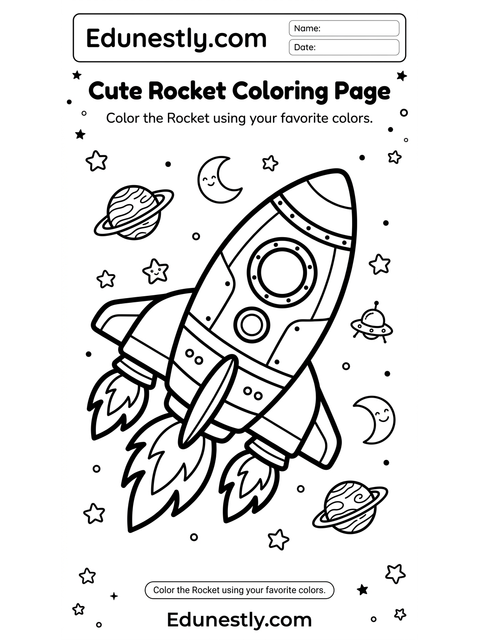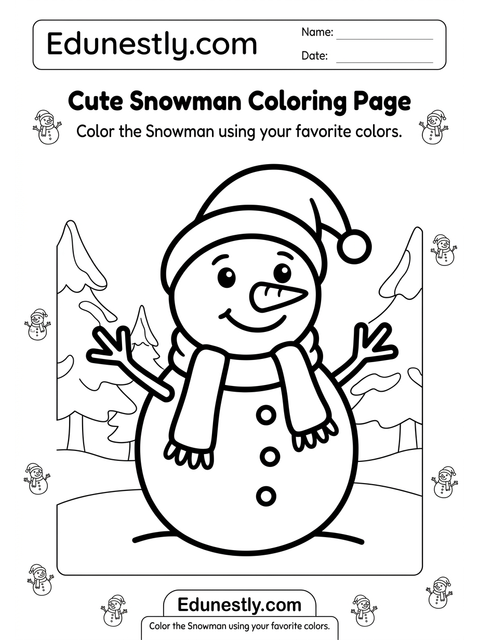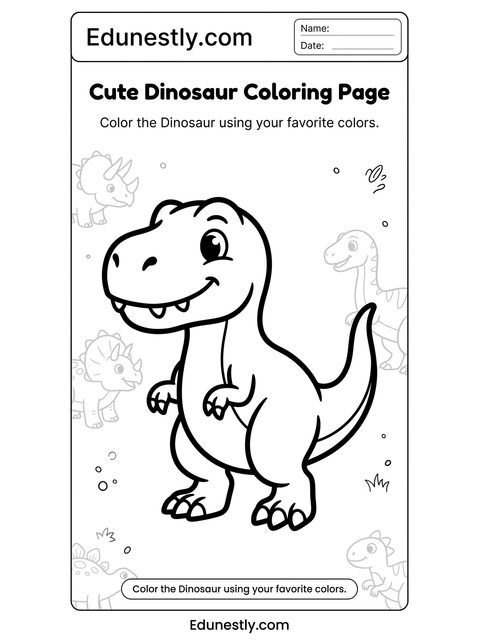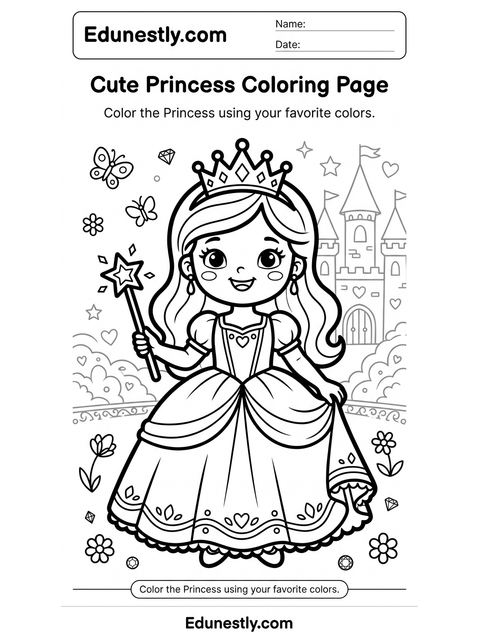
Free
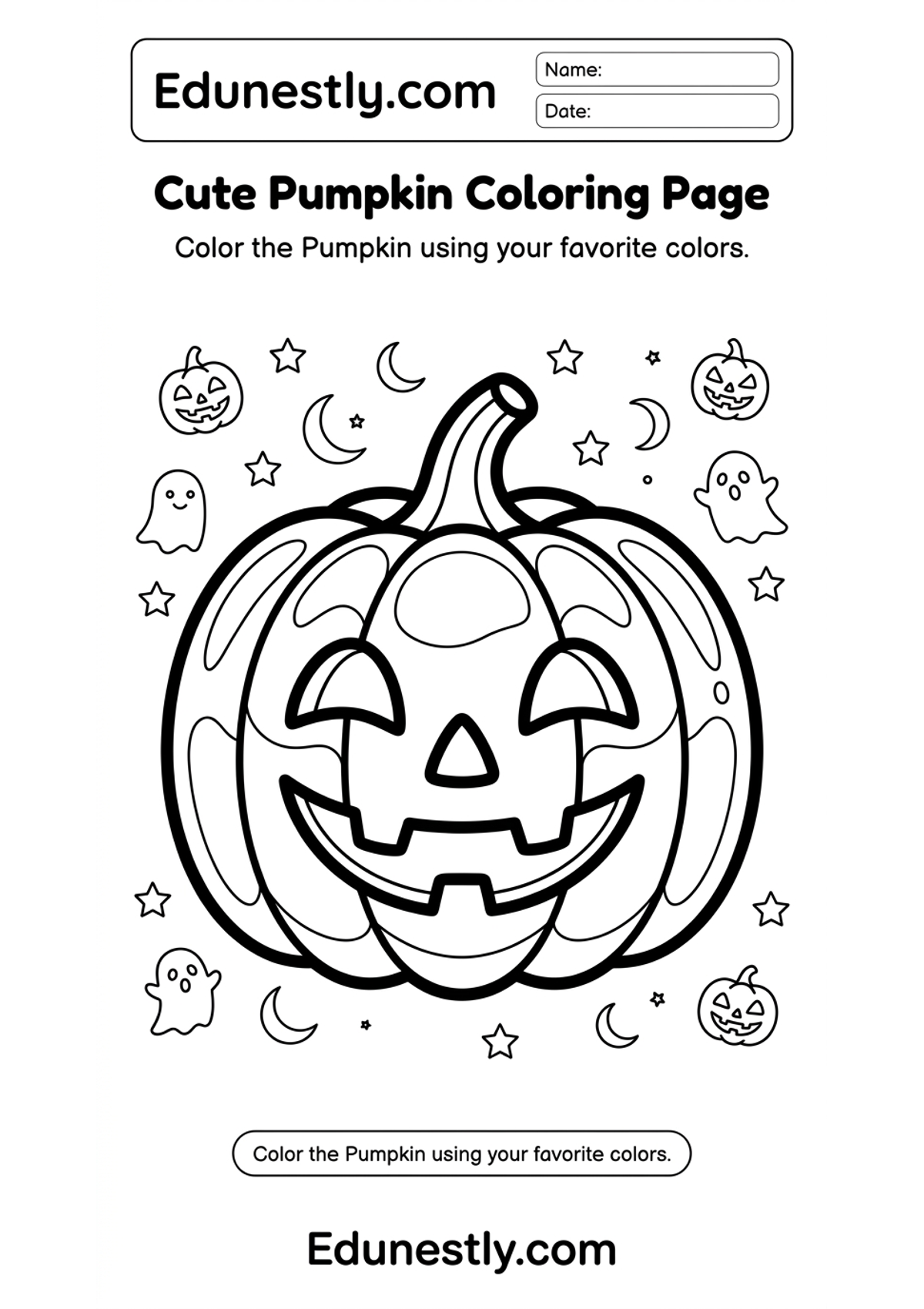
Cute Pumpkin Coloring Page
Instructions
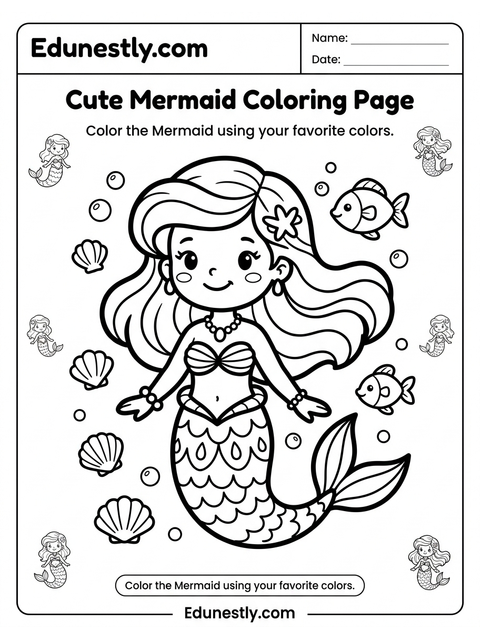
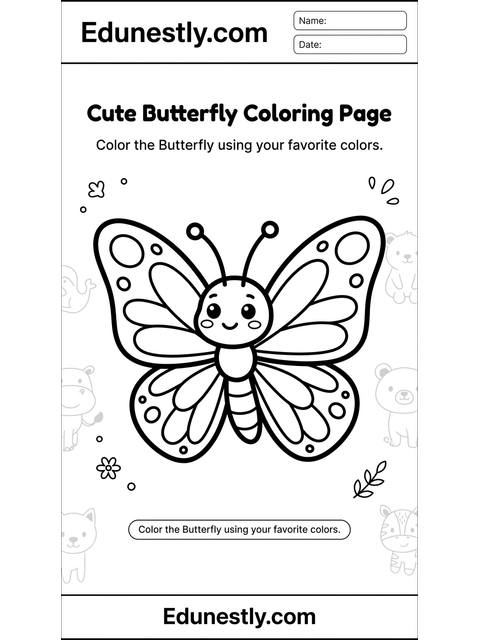
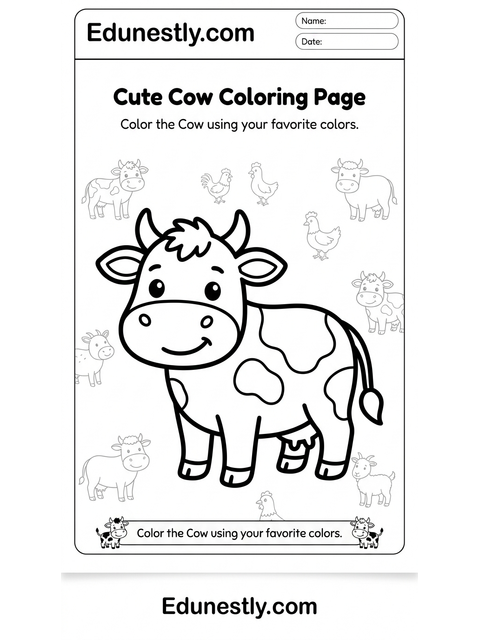
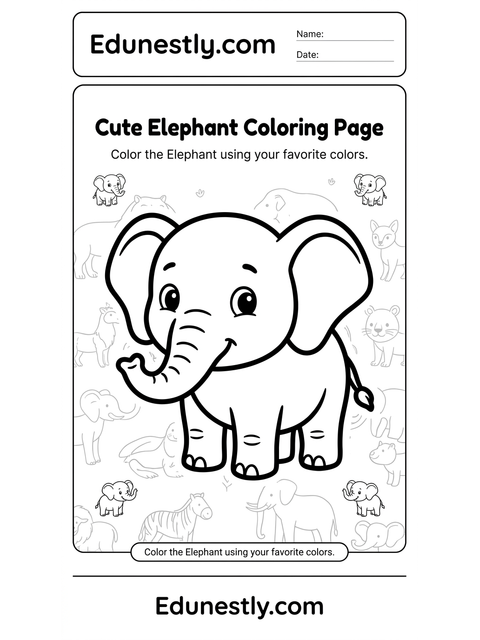
Color the Pumpkin using your favorite colors.
Learning objective
Develop creativity and color recognition while exercising fine motor skills.
About this worksheet
This printable coloring page is unhurried practice for the small hand muscles writing depends on. Staying inside an outline takes the same control as forming a letter, but to a child it feels like play rather than work.
Color ideas
Try orange, green, brown. Or pick something else entirely: there is no wrong answer on a coloring page, and choosing is part of the practice.
How to use this worksheet
- 1Print the sheet at 100% scale on A4 or Letter paper.
- 2Sit your child at a table with good light, and a sharpened pencil or a thick crayon for smaller hands.
- 3Color the picture, trying to stay inside the outlines.
- 4Stop while it is still fun. Five to ten minutes is plenty at this age, and a short happy session beats a long frustrating one.
What your child practices
- Color recognition and making choices
- Staying inside a boundary
- Pencil grip and hand strength
- Focus, and following an instruction to the end
You will need
- A printer, and A4 or Letter paper
- A pencil, or thick crayons for younger children
- Colored pencils or crayons for the picture
Printing tips
- Print at 100% scale. “Fit to page” shrinks the guides and makes them harder to trace.
- Slide the sheet into a plastic pocket and use a dry-wipe pen — now it can be reused every day.
- Print two copies: one to try on, one to keep once it goes well.
Common questions
- Is this worksheet really free?
- Yes. Every worksheet on Edunestly is free to download and print. There is no account to create and no watermark on the PDF.
- What age is it for?
- It is designed for ages 3-7. Age ranges are a guide, not a rule — follow the child in front of you rather than the number.
- Can I use it in my classroom?
- Yes. Print as many copies as you need for your own class or childcare group. Please link back to the page rather than re-hosting the PDF elsewhere.
- The letters print too small — what went wrong?
- Almost always the print dialog is set to “fit to page” or “shrink oversized pages”. Set scaling to 100% (or “actual size”) and print again.