Free
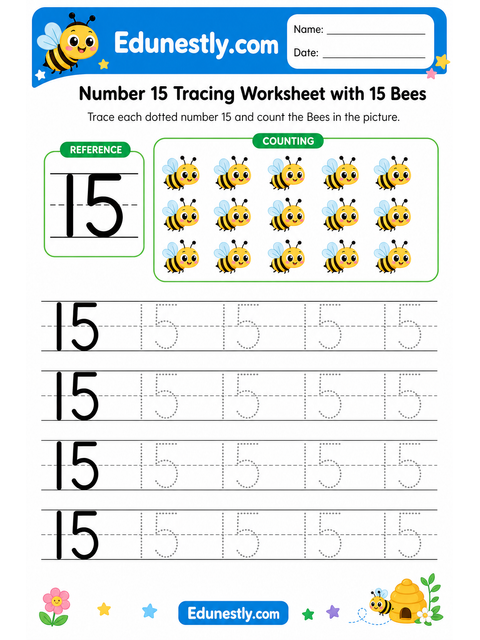
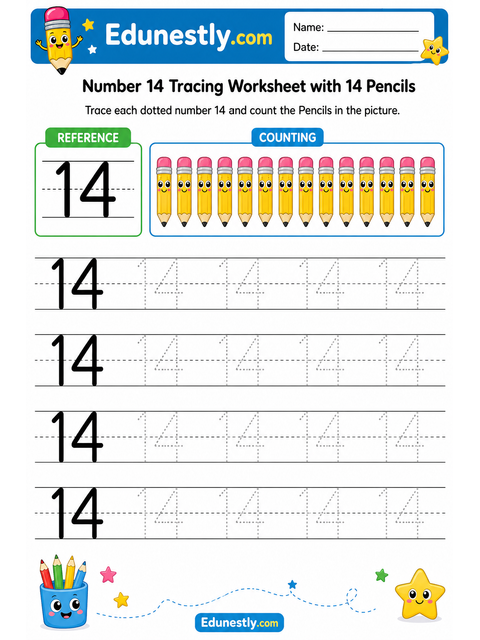
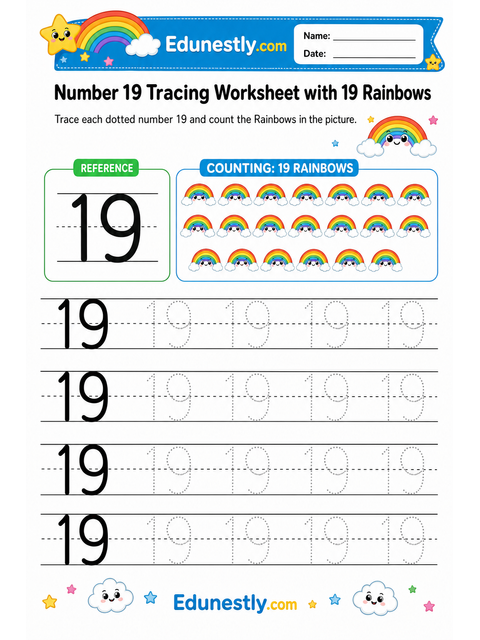
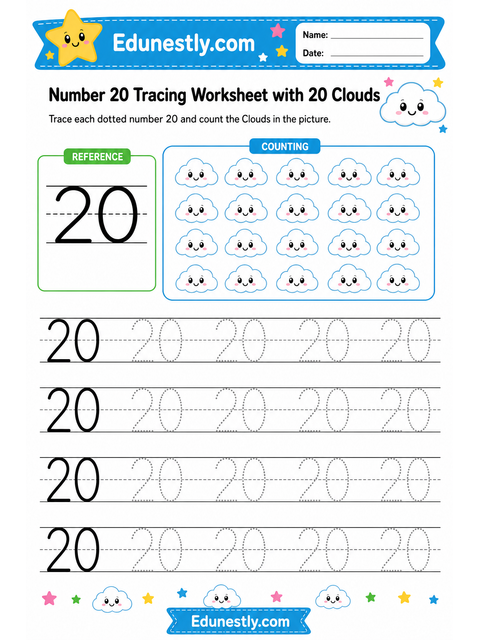
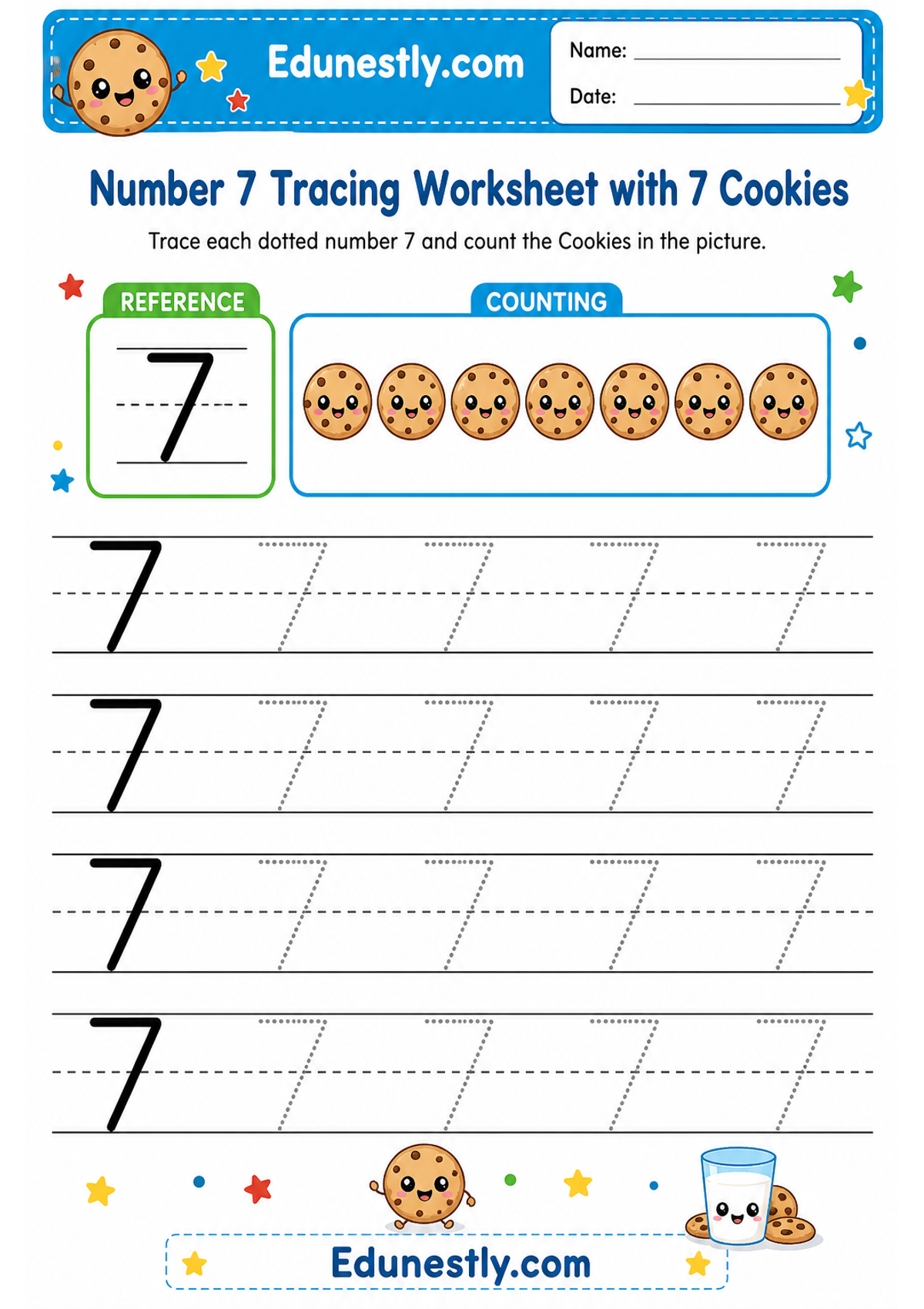
Number 7 Tracing Worksheet with 7 Cookies
Instructions
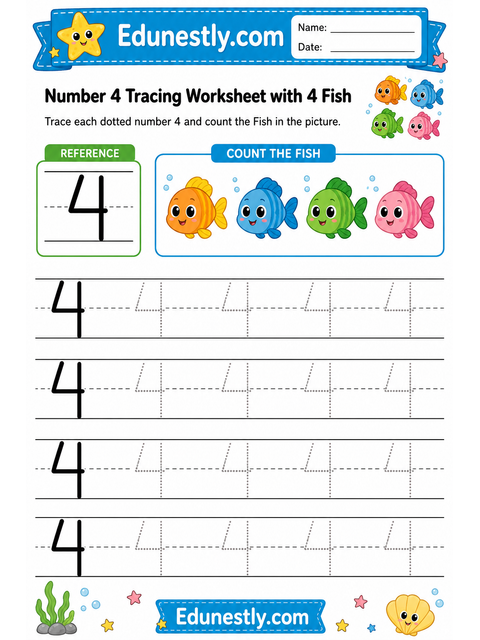
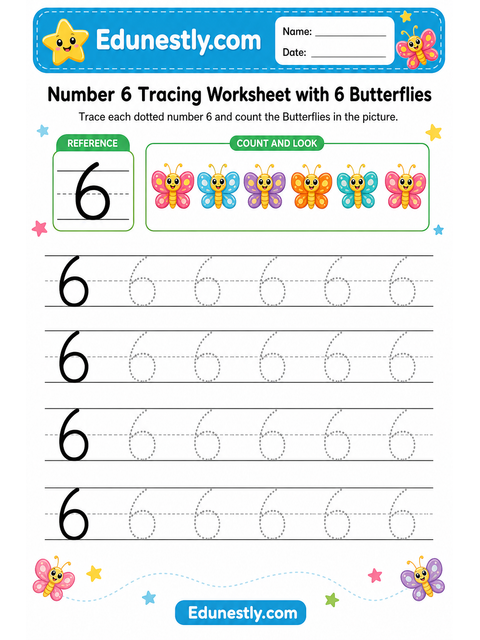
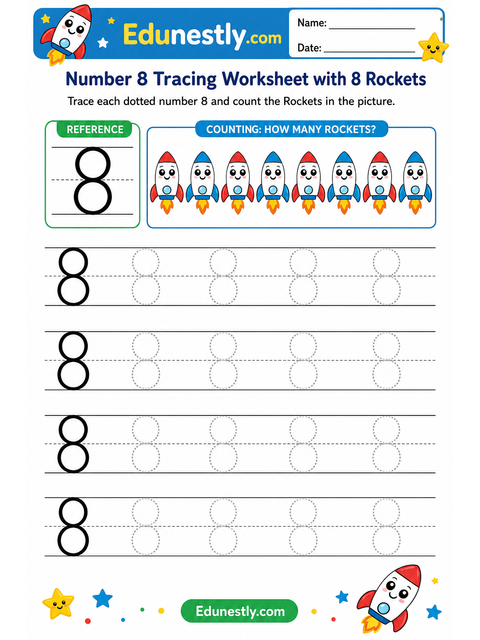
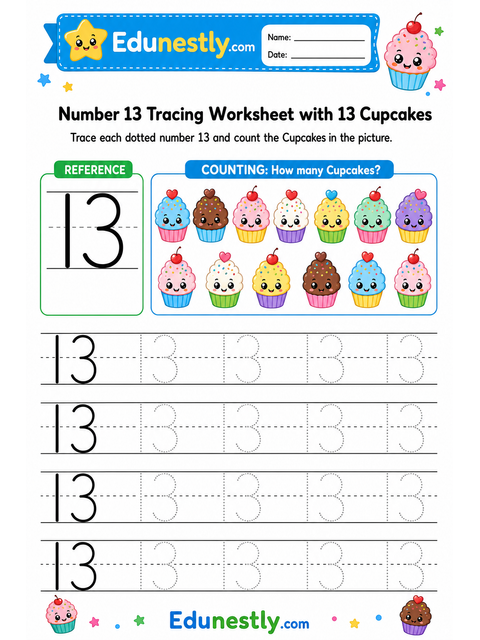
Trace each dotted number 7 and count the Cookies in the picture.
Learning objective
Recognize and trace the number 7 while counting 7 object(s).
About this worksheet
This printable number-tracing sheet puts the written numeral next to a matching group of objects to count. That pairing is the point: your child practices the pencil strokes and connects the symbol to the quantity it stands for at the same time.
Counting to 7
The number 7 is written as the word “seven”.
Show 7 on your fingers, then count the pictures on the sheet to check that they match.
How to use this worksheet
- 1Print the sheet at 100% scale on A4 or Letter paper.
- 2Sit your child at a table with good light, and a sharpened pencil or a thick crayon for smaller hands.
- 3Trace each dotted numeral, then count the objects out loud and say the number.
- 4Stop while it is still fun. Five to ten minutes is plenty at this age, and a short happy session beats a long frustrating one.
What your child practices
- Recognizing the numeral
- Counting a group and matching it to a number
- Pencil grip and hand strength
- Focus, and following an instruction to the end
You will need
- A printer, and A4 or Letter paper
- A pencil, or thick crayons for younger children
- Colored pencils or crayons for the picture
Printing tips
- Print at 100% scale. “Fit to page” shrinks the guides and makes them harder to trace.
- Slide the sheet into a plastic pocket and use a dry-wipe pen — now it can be reused every day.
- Print two copies: one to try on, one to keep once it goes well.
Common questions
- Is this worksheet really free?
- Yes. Every worksheet on Edunestly is free to download and print. There is no account to create and no watermark on the PDF.
- What age is it for?
- It is designed for ages 3-6. Age ranges are a guide, not a rule — follow the child in front of you rather than the number.
- Can I use it in my classroom?
- Yes. Print as many copies as you need for your own class or childcare group. Please link back to the page rather than re-hosting the PDF elsewhere.
- The letters print too small — what went wrong?
- Almost always the print dialog is set to “fit to page” or “shrink oversized pages”. Set scaling to 100% (or “actual size”) and print again.